
We create digital solutions that work for businesses

In a hosting control panel, next to the PHP version, there is often one more setting — the PHP mode: “Apache module” or “FastCGI (Nginx + PHP-FPM)”. Both options work, and your site will open in either of them. But the choice determines whether the rules in your .htaccess file will work, how the site behaves under load and what you will have to configure during a migration.
We explain the difference without unnecessary theory: how each mode works, what happens to .htaccess, when to enable the PageSpeed module and what to choose for WordPress, Joomla, Drupal, PrestaShop, OpenCart and 1C-Bitrix.
If your site relies on .htaccess — and most CMSs do — the Apache module is the safest choice during a migration: friendly URLs, redirects and folder protection keep working as before. Nginx + PHP-FPM uses fewer resources per request and handles traffic spikes more steadily, but it ignores .htaccess: the rules have to be moved into the Nginx configuration.
The practical approach: migrate in Apache mode, make sure everything works, and then, if needed, switch to Nginx + PHP-FPM after moving the rules and checking the redirects.
PHP runs inside the Apache web server as one of its modules. On most modern hosting, Nginx sits in front of Apache: it serves static files itself — images, CSS, JavaScript — and passes PHP requests on to Apache. Apache reads the .htaccess files in the site’s folders on every request, so you can change any rule just by editing the file.
Nginx handles every request itself, and PHP code is executed by a separate pool of PHP-FPM processes via the FastCGI protocol. There is no Apache in this setup at all, so nothing reads .htaccess: routing rules, redirects and access restrictions are defined in the Nginx configuration. On the plus side, each request is cheaper to serve, and the server behaves more predictably under load.
| Criterion | Apache module | Nginx + PHP-FPM |
|---|---|---|
| .htaccess files | work | ignored; rules are moved into the Nginx configuration |
| Serving static files | fast, if Nginx sits in front | fast |
| Memory and traffic spikes | more resources per request | more economical, more stable under load |
| PHP settings per site | hosting panel or directives in .htaccess | hosting panel or a .user.ini file |
| Moving an existing site | no changes to the rules | rules need to be adapted |
| Best for | most CMS-based sites, especially during a migration | online stores and high-traffic sites, once the rules have been moved |
The .htaccess file is a set of instructions for Apache that a CMS usually places in the site’s root folder. On Nginx, the following stop working unless they are moved over:
index.php. Without it, inner pages return a 404;.htpasswd;php_value memory_limit — in PHP-FPM mode, these are set in the control panel or in .user.ini.After any change of mode, check your redirects — the redirect checker makes this easy — and your security headers with the security headers check.
For most CMSs, the basic friendly-URL rule in Nginx is a single directive. For WordPress and Joomla, it looks like this:
location / {
    try_files $uri $uri/ /index.php?$args;
}
For Drupal, it is almost the same, but without the directory check ($uri/):
location / {
    try_files $uri /index.php?$query_string;
}
For 1C-Bitrix, requests that don’t match any file are passed to /bitrix/urlrewrite.php (simplified):
location / {
    try_files $uri $uri/ @bitrix;
}
location @bitrix {
    include fastcgi_params;
    fastcgi_param SCRIPT_FILENAME $document_root/bitrix/urlrewrite.php;
    fastcgi_pass php-fpm;
}
And here is how to deny access to hidden system files, except for the .well-known folder used for SSL certificates:
location ~ /\.(?!well-known) {
    deny all;
}
PrestaShop and OpenCart have longer sets of rules — for product images, friendly category URLs and protecting system folders — and the exact rules depend on the version and modules. On shared hosting, the Nginx configuration is usually changed by the support team: on our hosting, we set up these rules for your site ourselves.
PageSpeed is a web server module that optimises pages on the fly: it minifies and combines CSS and JavaScript, recompresses images, and can convert them to WebP and add lazy loading. For an older site without a modern front-end build, it is a quick way to make pages lighter without changing the code.
But there are caveats:
The right order is: measure the speed beforehand, enable PageSpeed on a copy or at a quiet time, check pages and forms, and measure again — with our speed audit or using the method from our article on TTFB and Core Web Vitals. Keep the module only if the result is better.
OPcache bytecode caching does not depend on the mode: both the Apache module and PHP-FPM keep compiled PHP code in memory, so the CMS does not recompile its files on every request. Make sure OPcache is enabled for your PHP version — it is one of the cheapest ways to cut server response time.
| Platform | Apache module | Nginx + PHP-FPM |
|---|---|---|
| WordPress | the simplest option during a migration | a good choice: the friendly-URL rule is simple and caching plugins work |
| Joomla | rename htaccess.txt to .htaccess and it works | once the friendly-URL and protection rules have been moved |
| Drupal | Drupal’s own .htaccess works out of the box | with the recommended rules for Drupal |
| PrestaShop | PrestaShop generates .htaccess itself | for busy stores; the rules are more complex |
| OpenCart | just rename .htaccess.txt to .htaccess | once the rules for SEO URLs are set up |
| 1C-Bitrix | the simplest and most common option | via rules for urlrewrite.php |
| Laravel and custom PHP projects | works with the .htaccess in the public folder | the natural choice: the site root is the public folder |
On our hosting, the PHP mode is chosen for each site separately, along with the PHP version from 5.6 to 8.5. Specific platforms have their own pages: WordPress, Joomla, Drupal, PrestaShop, 1C-Bitrix and Laravel and PHP.
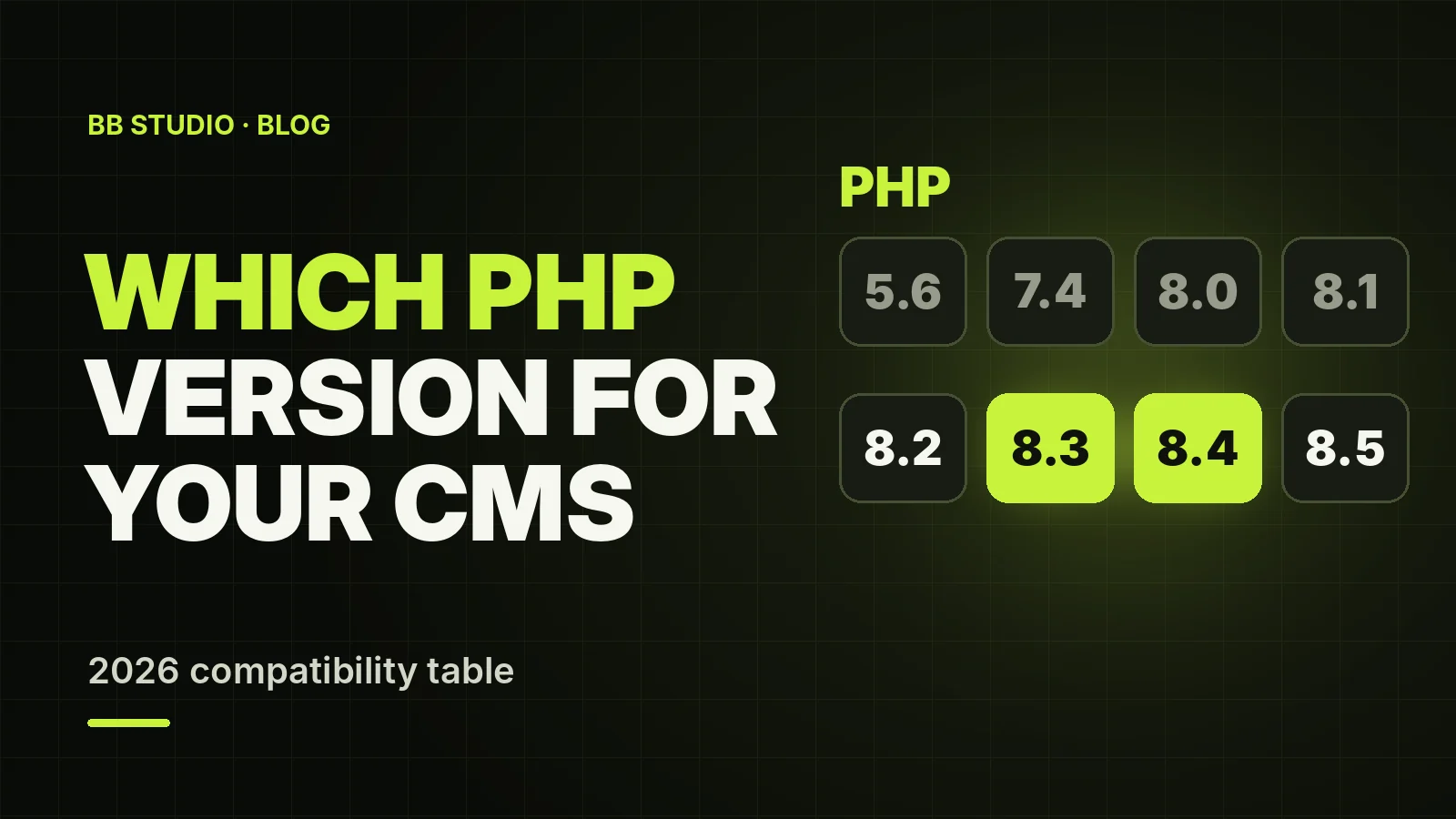
.htaccess file on the site — not just in the root, but in subfolders too..user.ini.The Apache module is the most compatible mode: .htaccess rules work, and the migration goes without surprises. Nginx + PHP-FPM is faster and more economical, but it requires moving the rules into its configuration. PageSpeed is a useful tool for older sites, provided you enable it carefully and measure the result. And to find the right PHP version for your CMS, see our PHP compatibility table.
If you would rather not deal with Nginx rules yourself, contact BB STUDIO: we will move your site to our hosting free of charge, choose the mode and set up the rules for your site.
 Hosting & tech
 Hosting & tech
 Hosting & tech
 CRM and Business Automation
 Let’s create something amazing together
